 Free Online Image Optimizer
Taking the hidden data off a photograph
A photograph from a phone is not only a picture. Written alongside it, in a block most software never shows you, is usually the place it was taken to within a few metres, the second it was taken, the phone that took it and the settings it used. This walks through removing all of that, and through checking for yourself that it worked.
Remove EXIF data from a photo →
What is actually in there
The block is called EXIF, and a phone fills it in generously: GPS latitude and longitude, altitude, the date and time to the second, make and model, lens, exposure, whether the flash fired, sometimes the direction the camera was pointing.
None of it matters until a photograph travels. The cases worth caring about are the ones where a picture goes to a stranger: a marketplace listing photographed in your kitchen, a photo attached to an email, a picture sent through a chat app as a file rather than as a photo, a shared cloud folder. Large social networks do strip most of this on upload — after reading it — but those routes are the ones people forget.
The tool is at Remove EXIF data from a photo.
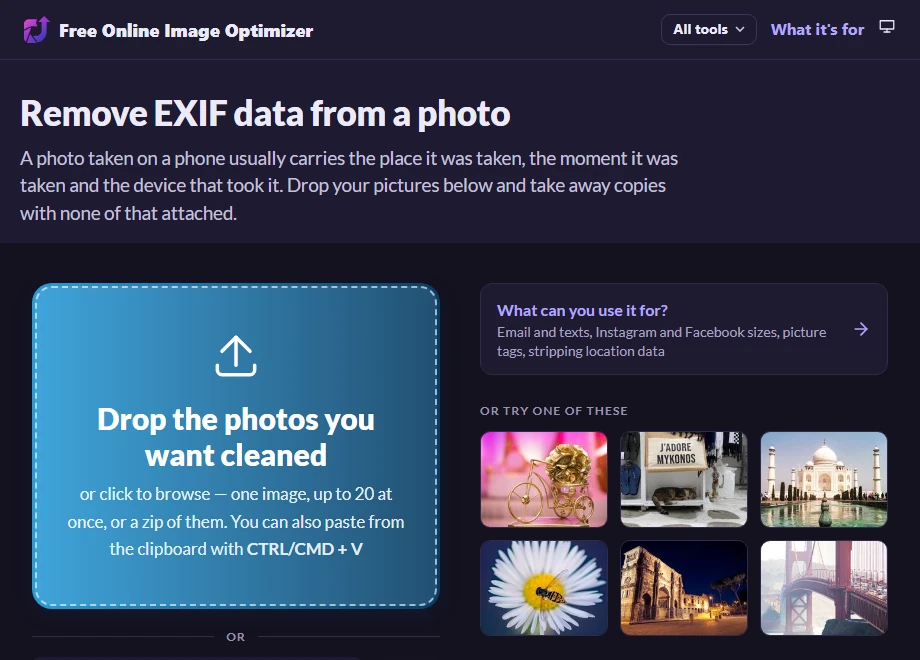
Give it the photographs
One, or up to twenty. Anything a phone or a camera produced will do.
The picture itself is not being altered here in any way you can see — the pixels are recompressed, and what was written beside them is discarded. Everything comes back as JPEG.
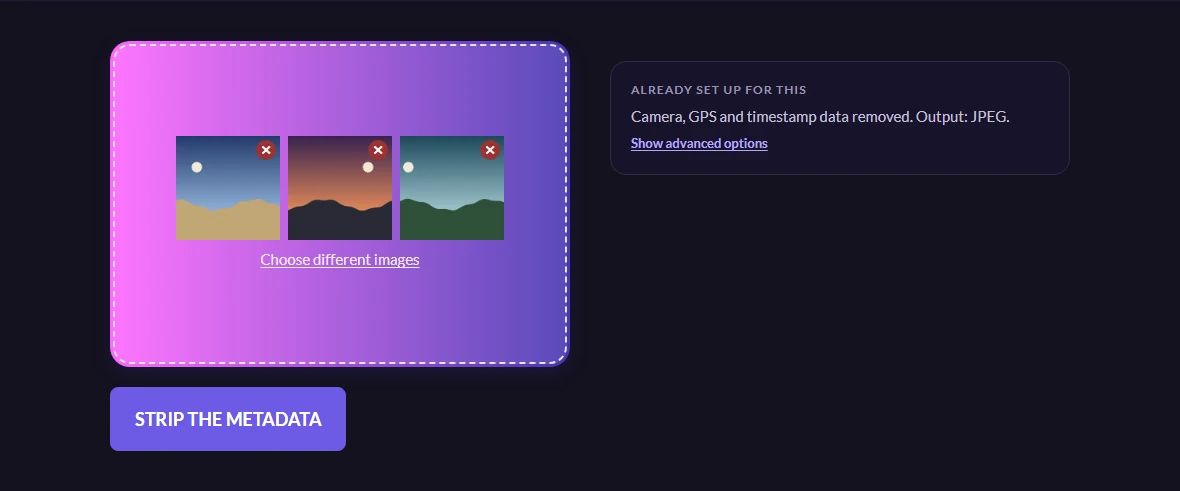
What the clean copy is, and is not
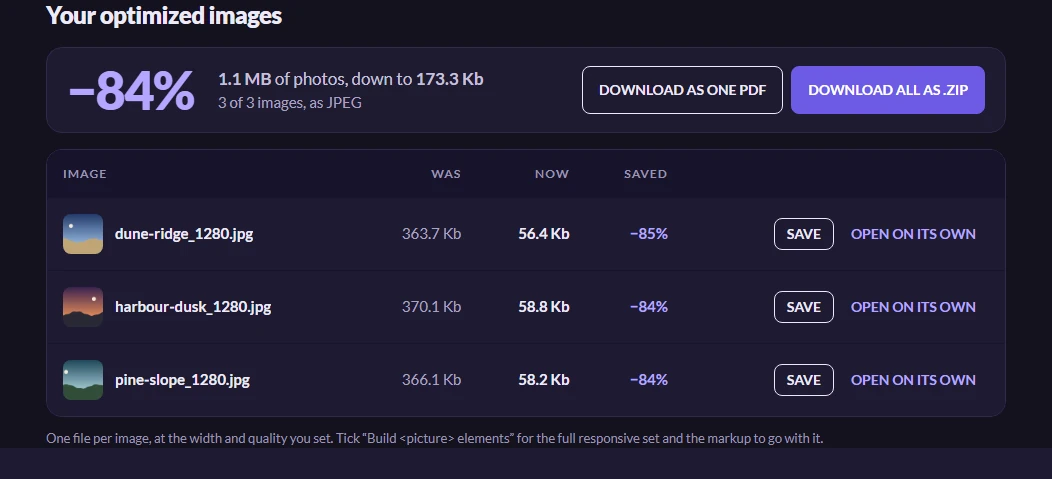
The clean copies. The visible change is the file size, and that is the compression rather than the metadata — an EXIF block is a few kilobytes, so it is never where the saving comes from.
The removal is genuine and not cosmetic. Tested by building a JPEG with a distinctive marker string written into its EXIF ImageDescription field and putting it through this page: neither the marker nor the Exif header itself appears anywhere in the bytes that come back. The block is gone, not blanked.
Worth knowing
How to check for yourself
Do not take a website's word for it. On Windows, right-click the file, Properties, Details — the camera and GPS rows should be empty. On a Mac, open it in Preview and use Tools, Show Inspector. If you want the whole truth, exiftool on the command line prints every field there is, and on a cleaned file it prints almost nothing.
Doing this once on a file you know had location data in it is worth more than any assurance on this page.
It is all or nothing here
There is no way on this page to keep the camera settings and drop only the location. The whole block comes off. Photographers who want the exposure data preserved and the coordinates gone need a desktop tool that edits fields individually — this is a one-button version of the job most people actually have.
Every page here does this, in fact
Worth knowing: metadata is dropped by default on every task on this site, not only this one. The image pipeline keeps metadata only when explicitly asked to, and nothing here asks. What this page adds is that it says so, outputs a JPEG, and does not change the size or shape of your picture while it is at it.
So if you were going to compress a photograph anyway — to email it, say — the metadata comes off in that pass too.