 Free Online Image Optimizer
A folder of photographs, in one pass
Doing images one at a time is the part of this job nobody enjoys. Drop the set in, get the set back, keep the filenames, one download for the lot. This walks through a batch of five and explains the two limits worth knowing about before you start.
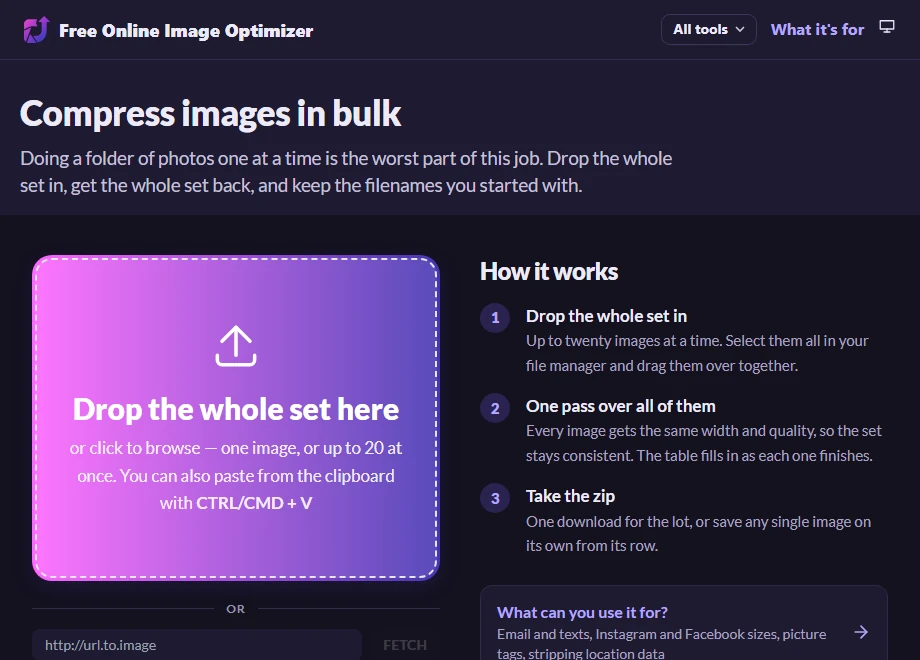
Select the lot and drag them over
Compress images in bulk is the same tool as the front page, set up for a set rather than a single picture: one smaller JPEG per image, the same settings across all of them.
Select them all in your file manager and drag them over together. Up to twenty per pass.
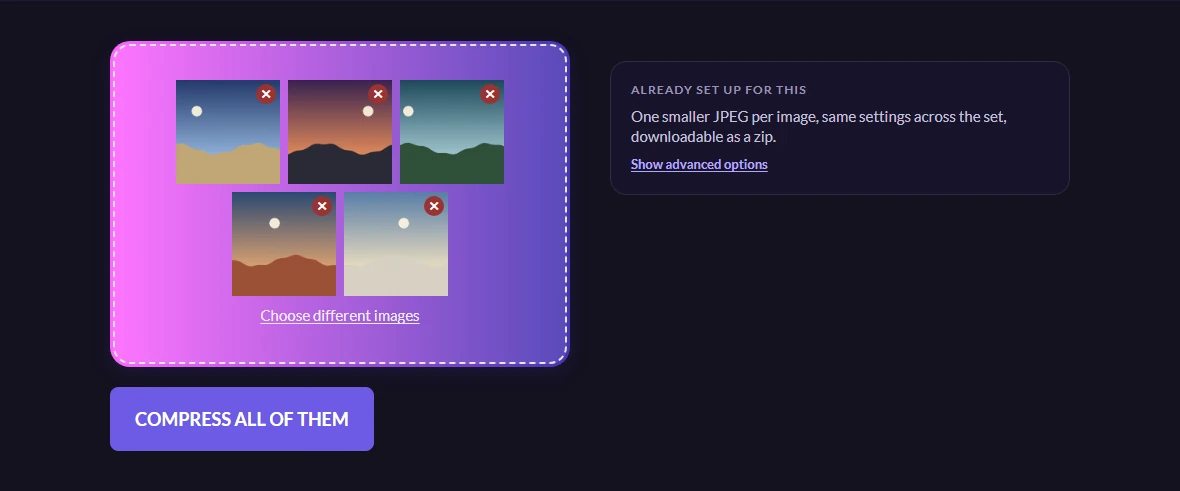
One setting across the set
Every image gets the same width and the same quality. That is the point of a batch rather than a shortcoming of it — a set of photographs that have been treated identically stays consistent, which is what you want for a gallery, a listing or a folder you are handing to somebody else.
If you want different settings for different images, that is two passes. There is no per-image control here, and adding one would turn a batch into twenty small jobs.
The table, and the zip
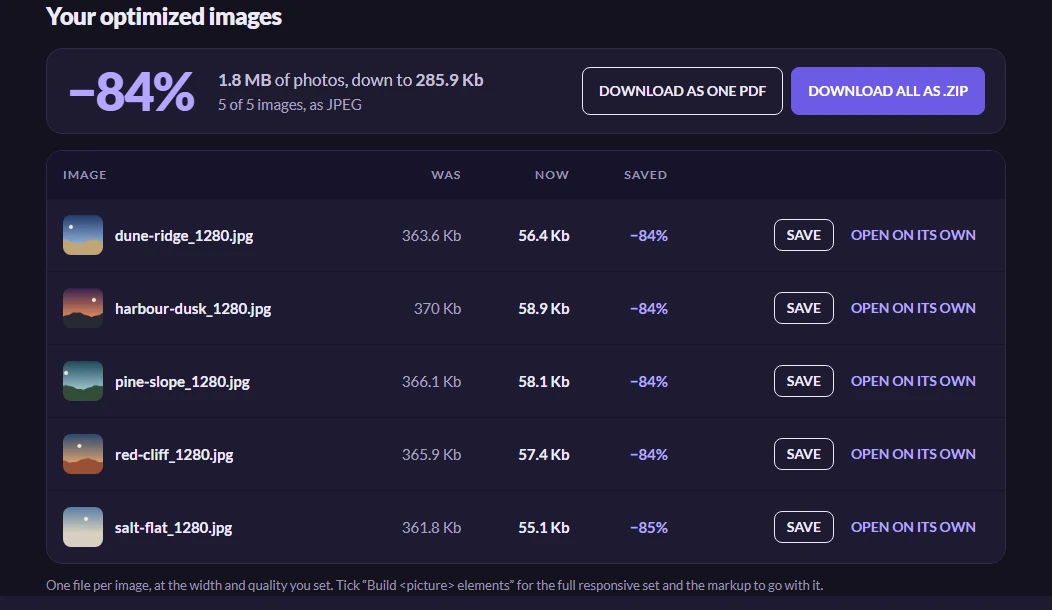
The table fills in as the images come back, one row each, with what every file weighed before and after. Your filenames survive — dune-ridge.jpg comes back as dune-ridge with the width appended, so a folder that was in a sensible order stays in it.
Take the whole set as one zip, or save any single image from its row. If one image fails, it drops out of the set and the rest carry on; the row says so rather than the whole batch failing.
Worth knowing
Why twenty and not two hundred
The work happens per image and the results are held in your browser until you download them, so a very large batch is a memory problem on the machine you are sitting at rather than on a server. Twenty is a size that behaves on a phone as well as on a desktop.
For a hundred images, five passes of twenty is genuinely the way to do it, and each pass gives you one zip.
Photographs, not paperwork
If the images are photographs of pages, use the page for photographed paperwork instead. It holds a higher quality on purpose so that small print survives, which is exactly the wrong default for holiday photographs and exactly the right one for a contract.
What happens to the files
Each one is uploaded, processed and deleted automatically afterwards, and used for nothing beyond making the files you asked for. What that sentence commits to in binding terms is in the privacy notice, which is the version that counts.