 Free Online Image Optimizer
Flipping a photograph, and which way a selfie goes
A front camera shows you one thing and saves the mirror of it. You see yourself as you do in a mirror while composing the shot, and the file that lands in your camera roll is flipped back — so the writing on your shirt reads backwards and your parting is on the wrong side. This walks through putting it right, and through the turns on the same page that are not mirroring at all.
Why the selfie is backwards
The preview is mirrored deliberately, because a mirror is what people are used to composing in. Most phones then save the unmirrored frame, which is what the camera actually saw — technically the truthful version, and not the one you were looking at when you decided the photograph was good.
You notice it on anything with text in it, on a parting, on a scar, on a shirt that buttons the wrong way. Mirroring the file left to right undoes it.
The tool is at Flip an image.
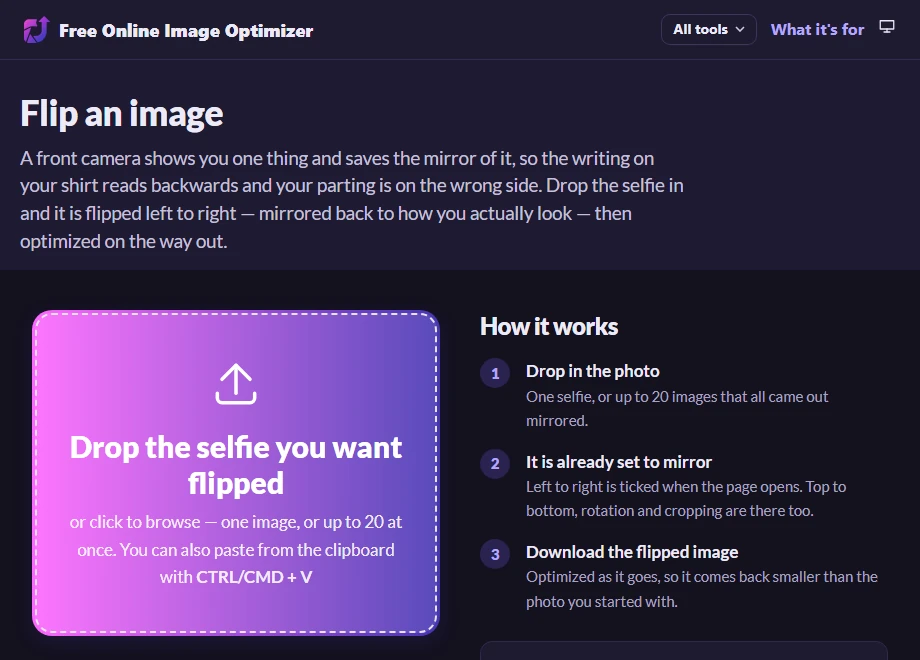
It is already ticked, so look at the stage
Mirroring left to right is on when the page opens. Drop a photograph in and the stage shows it already flipped — the version you are going to get, not the version you gave it.
That is worth pausing on, because it is how you tell whether you needed the flip at all. If the lettering reads correctly on the stage, press the button. If it now reads backwards, you had a photograph that was the right way round to begin with, and you can untick the flip.
Underneath the stage are the other turns: top to bottom, which is for a photograph that came in upside down rather than mirrored, and quarter turns for one that came in on its side. They are different operations and it is worth being clear which you need — mirroring a landscape that is merely rotated will not fix it.
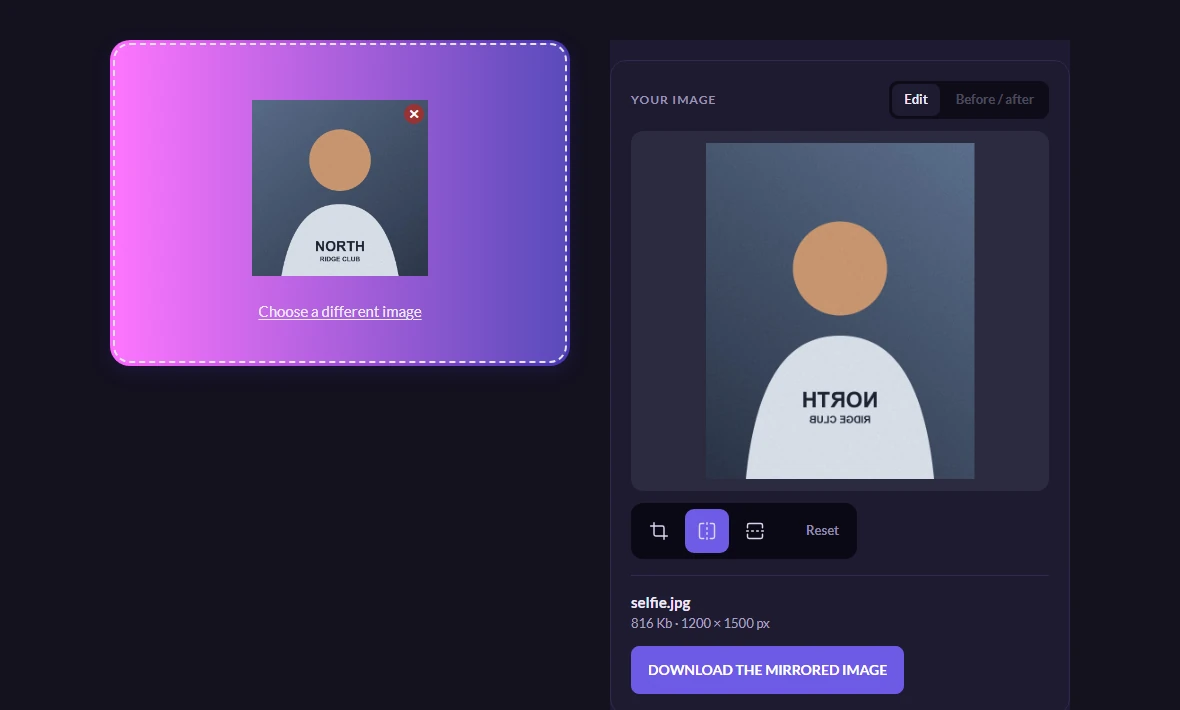
Take the mirrored file
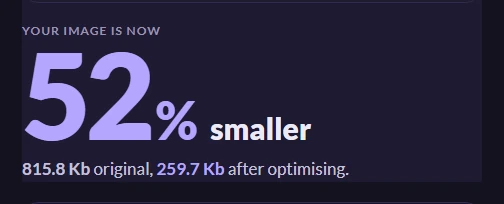
One file, mirrored and compressed in the same pass, so it comes back smaller than the photograph you started with. The button hands the file straight over, the page tells you what it saved, and the table underneath keeps the row so you can save it again without starting over.
The flip happens in your browser, on a canvas, before anything is uploaded. Mirroring is not something the image pipeline can do on the way out — asking it to refuses outright — so the pixels are moved locally and the moved version is what gets optimised.
Worth knowing
Does flipping cost quality
The mirroring itself does not — moving pixels sideways is exact. Re-encoding them does, slightly, because the result is written out as a fresh JPEG. It is one generation of loss and invisible at any normal viewing size, and the same pass is what makes the file smaller. If you want the mirror with no recompression at all, that is a job for a desktop tool that can do a lossless JPEG transform.
Twenty at once
Up to twenty images that all came out mirrored can go through together, all getting the same flip. The stage is for one picture at a time; a batch skips the stage and shows you a table instead.
The metadata comes off too
As on every page here, the camera and location data are not carried into the result. If that is the only thing you wanted, there is a page for it.