 Free Online Image Optimizer
Turning a PDF into images, page by page
A PDF is a good way to send a document and a poor way to show one. It will not go in an Instagram post, most chat apps turn it into an attachment nobody opens on a phone, and a slide deck wants a picture rather than a file. This walks through converting one — a twelve-page report — and explains what the numbers on screen are telling you.
Start at the PDF page, not the front page
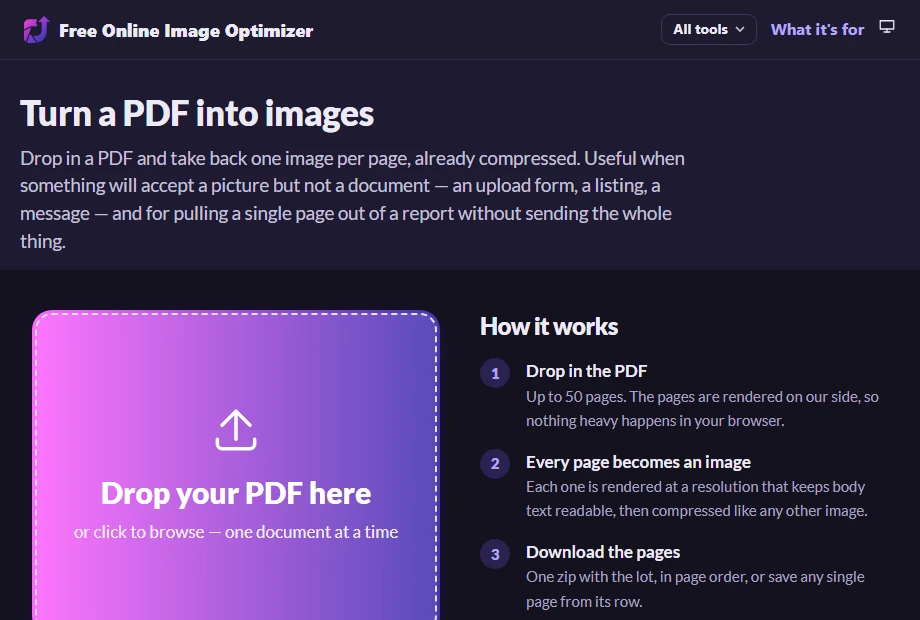
The tool that does this lives at Turn a PDF into images. It is the same application as the front page with one difference that matters: it is already set to accept a document and to hand back one image per page, so there is nothing to configure before you begin.
It takes one PDF at a time. That is a deliberate limit rather than a missing feature — a fifty-page document is fifty images, and doing four of those at once is how a phone runs out of memory halfway.
Drop the document in
Drag the PDF onto the drop zone, or click it and pick the file. You can also paste from the clipboard with Ctrl+V, or fetch one from a URL.
What happens next is the part worth understanding. The page does not put your document on the editing stage, because there is nothing to crop, flip or rotate on a document. Nor does it wait to be asked: this page exists to turn PDFs into images, so choosing the file is the request, and the conversion begins there and then. Nothing about it needs deciding first — the format, the width and the quality are applied to the finished pages afterwards, so changing your mind later rewrites a link rather than re-sending the document.
Watch the two halves of the bar
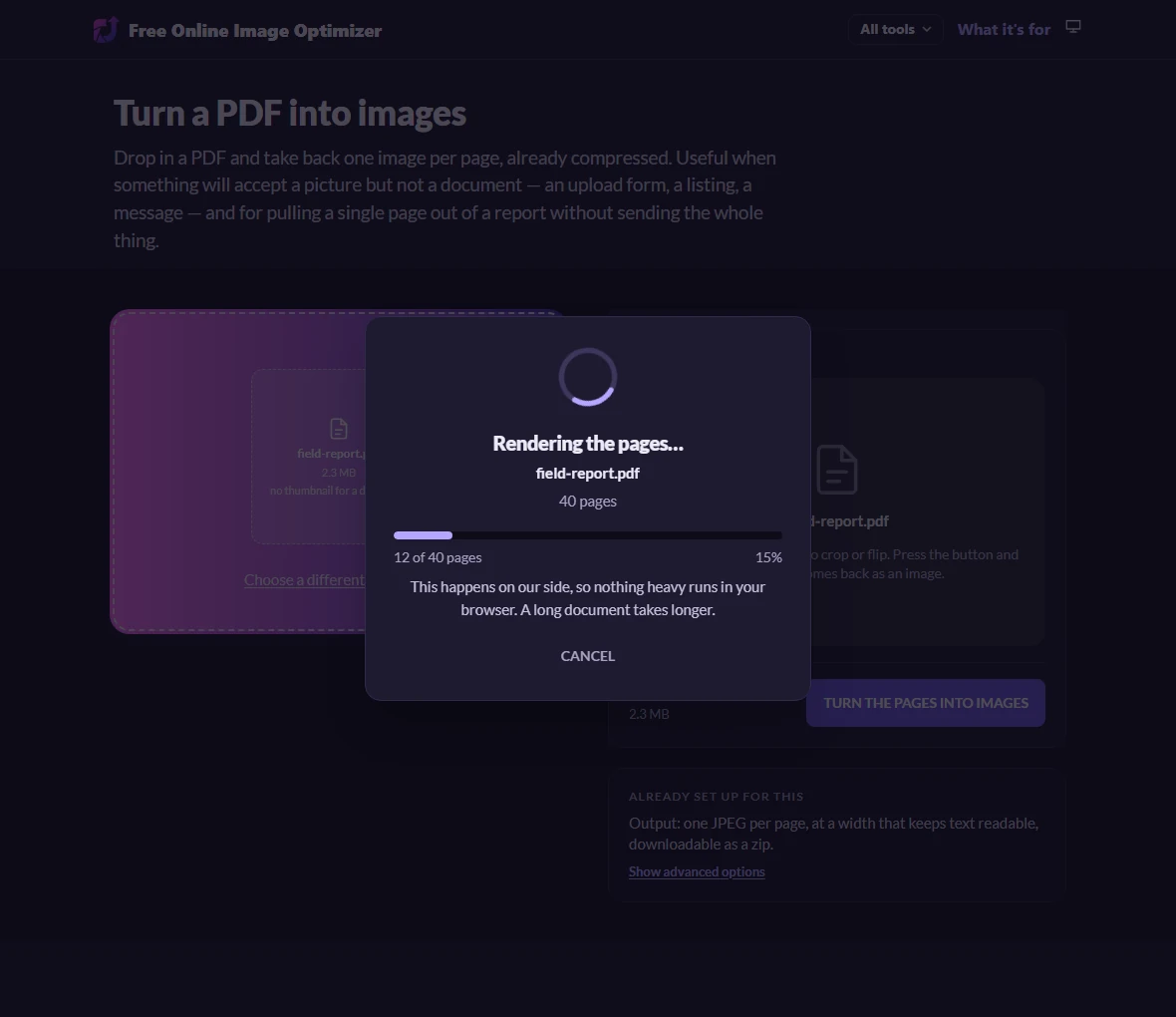
The panel that takes over the screen names the document it is working on, which is worth a glance: a PDF is the one thing you can hand over that has no thumbnail to check, so the filename is all there is. Picked the wrong one? Cancel sits underneath, and while the upload is still running it genuinely stops the work. Converting a long PDF is not instant, and the progress bar is honest about which part of the work it is doing. The first half is the pages being rasterised — turned from instructions into pixels — and it counts them off as it goes, so ten of forty pages is a quarter of the way through that half. The second half is those images being prepared for you to download.
The split is there because the two halves take very different amounts of time. On a thirty-page document the rasterising took about a second and the second half about nine, so a single bar racing to 50% and then apparently stalling would have looked like a fault rather than the slower half beginning.
Read the results
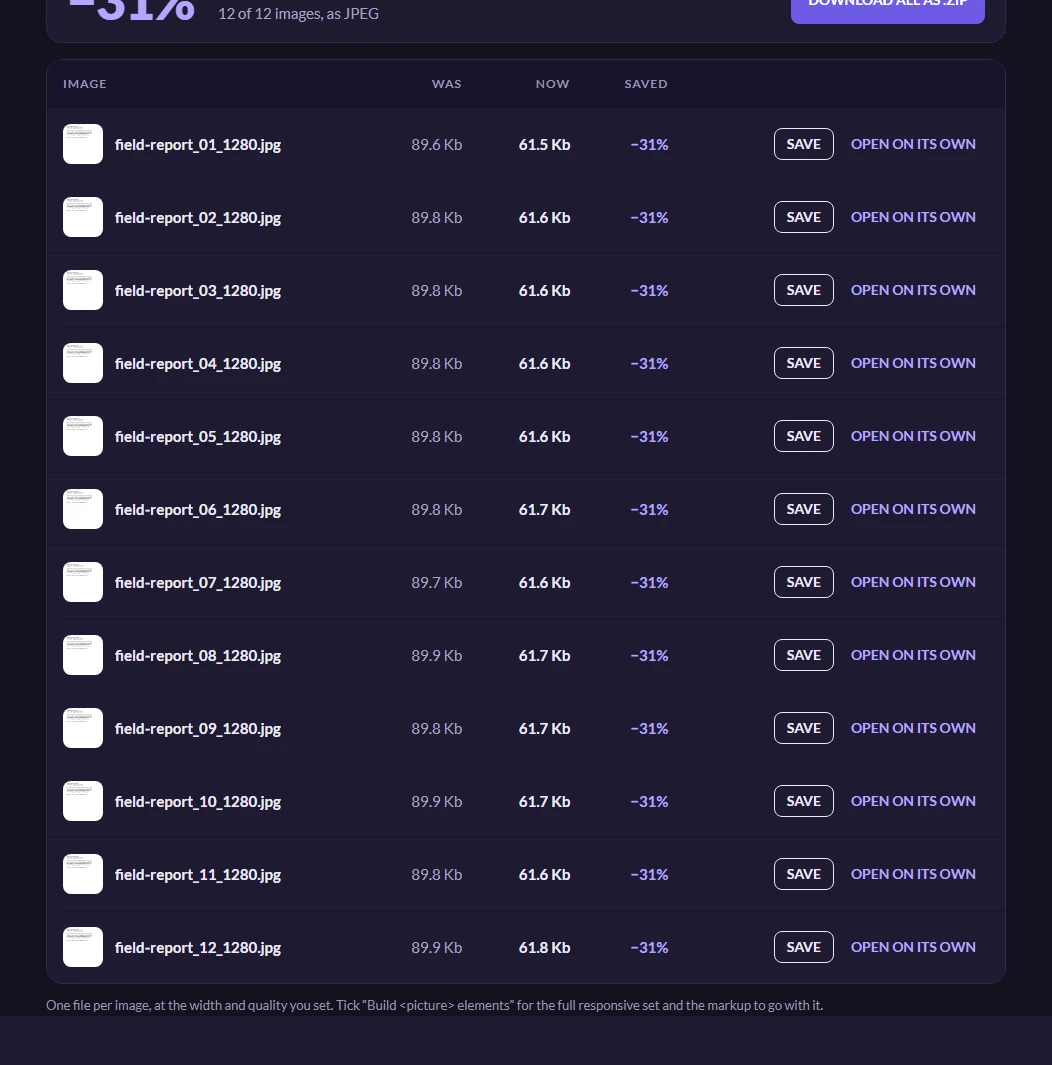
Every page comes back as its own JPEG, named after the document and numbered in order — field-report_01.jpg, field-report_02.jpg, and so on — so they sort correctly in any folder.
The bar at the top of the table is the summary: for this twelve-page report, 1.1 MB of pages came back as 739.8 Kb of images, 31% smaller. Each row shows what that page weighed before and after. Take the lot as one zip with Download all as .zip, or save a single page with the button on its row.
Open on its own does what it says: it opens that one page as an image in a new tab, so you can look at it full size or drag it straight into another application, without it becoming the starting point for more optimising.
Worth knowing
Do not send the pages back as a PDF
There is no button to reassemble the images into a document, and that is on purpose. A PDF full of text stores the text; a PDF full of page photographs stores pixels. A 205 Kb thirteen-page report measured 1.72 MB coming back — eight and a half times the size, and no longer searchable or selectable.
If you want a smaller PDF, this is the wrong tool. If you want pictures of the pages, this is the right one.
Text-heavy pages and the format
JPEG is what a page of prose comes back as, and it is a reasonable default: photographs and scanned pages both compress well and the artefacts are invisible at reading size. If the page is mostly line art, a diagram, or text you intend to zoom right into, a PNG holds the sharp edges better — the guide to the formats covers when each one earns its place.
Scanned or photographed pages are a slightly different problem, and there is a page set up for those.
What happens to your document
The PDF is uploaded to do the work and deleted automatically afterwards. It is not used for anything other than producing the images you asked for. The privacy notice is the binding version of that sentence.